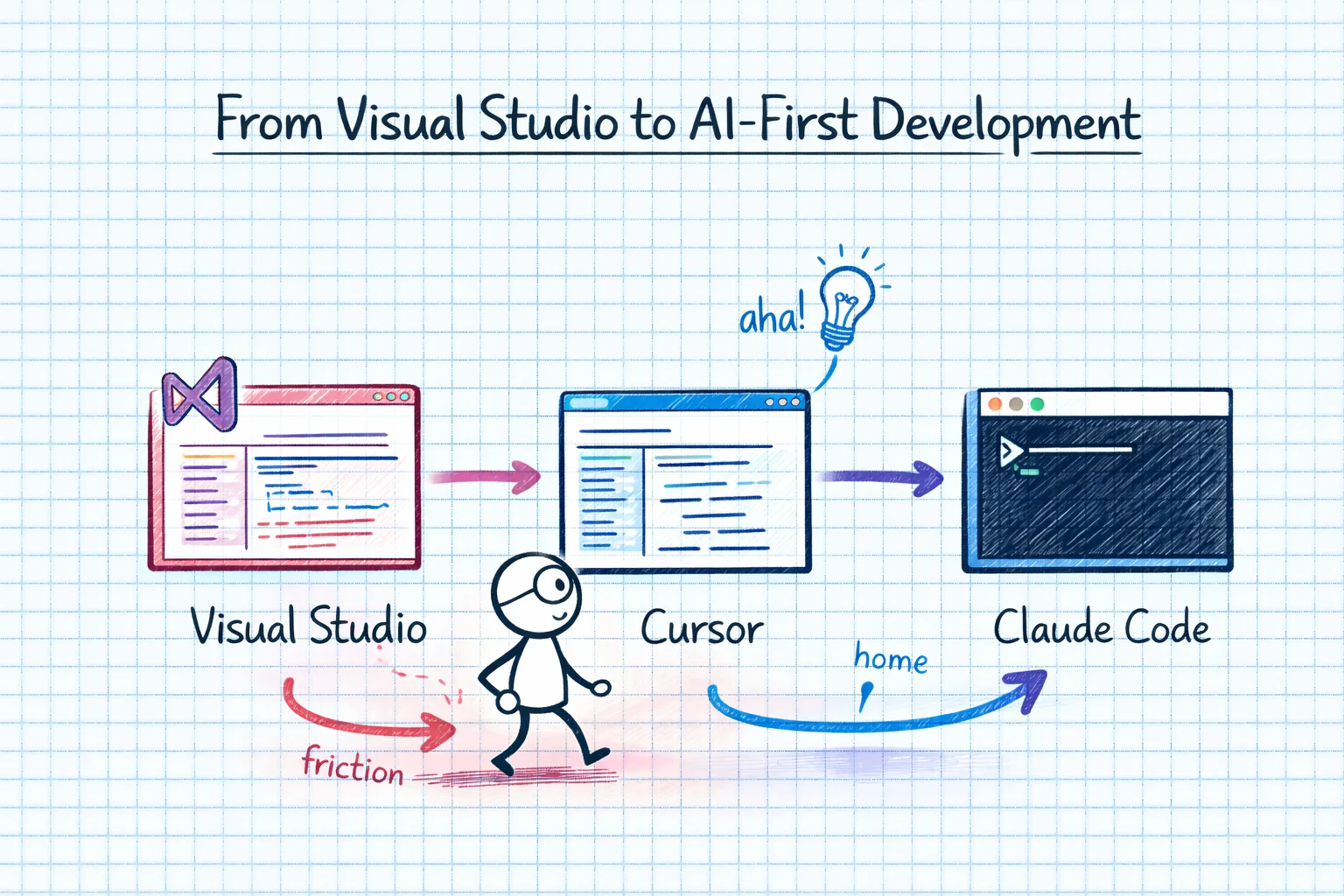
I have a confession to make. I love Visual Studio. The proper one. Not VS Code - Visual Studio, with its massive installer, its NuGet package manager GUI, its built-in profiler, and its ability to crash spectacularly when you open a solution with more than forty projects.
So when I started talking about "moving to AI-first development", part of me was terrified. This isn't just switching editors. It's fundamentally changing how you think about writing code. And for a .NET developer who's been in the Visual Studio ecosystem for fifteen years, that's a big deal.
This post is for other .NET developers who are curious about AI-first development but haven't made the leap yet, or who are early in the process and wondering if the friction they're hitting is normal. Spoiler: it is. All of it.
Step 1: Opening Visual Studio Projects in Cursor
My first tentative step was opening a .NET solution in Cursor. This seems simple. It is not.
Cursor is based on VS Code, and VS Code handles .NET projects... differently. The C# Dev Kit is fine for basic work, but if you're used to Visual Studio's deep .NET integration - solution explorer, project references, NuGet GUI, the debugging experience - it feels like going from a fully equipped kitchen to a camping stove.
I remember typing into the chat: "I have it open. It's a different way of working to Visual Studio. But I'm trying to move to more AI-first dev." That sentence captures the whole experience. It works. It's different. And you're doing it because you believe the destination is worth the journey, not because the journey is comfortable.
Step 2: Terminal-First Panic
The biggest culture shock for a Visual Studio developer isn't the editor. It's the terminal.
In Visual Studio, you press F5 to run, Ctrl+Shift+B to build, and the Output window shows you what happened. In the AI-first world, you're in the terminal. dotnet build. dotnet run. dotnet test. It's not harder. But it's different, and when you've been doing it one way for fifteen years, "different" feels like "wrong" for a while.
My first encounter with Claude Code in a terminal inside Visual Studio produced the memorable message: "How do I stop it?!" - not a metaphor for existential dread about AI, just genuine confusion about how to cancel a running process in a terminal. Ctrl+C. The answer is Ctrl+C. I know that now.
There was also a delightful episode with Alt+V keyboard shortcuts conflicting between Visual Studio and the terminal. The kind of thing that makes you question your life choices at 11pm on a Tuesday.
Step 3: Understanding What Claude Code Actually Is
Claude Code isn't an editor plugin. It's an agent that runs in your terminal and can read, write, and modify files. It can run commands. It can understand your project structure. It can make changes across multiple files simultaneously.
When I first started using it, I was still in the copy-paste mindset. Ask Claude (in the chat) for code, copy it, paste it into Visual Studio. Claude Code removes that entire workflow. You describe what you want, it modifies the files directly. You review the changes. You accept or reject.
This is faster. Significantly faster. But it requires a fundamentally different kind of trust. You're not reviewing code you wrote. You're reviewing code that was written in your codebase, following your patterns, but by something that doesn't fully understand the context the way you do.
I found that the right workflow was: Claude Code for implementation, me for review and architecture. It writes the code. I make sure it's the right code in the right place for the right reasons.
Step 4: The Subscription Confusion
Can we talk about the subscription situation? Because it's genuinely confusing.
There's Claude Pro (the chat interface). There's Claude Code (the CLI tool). There's Cursor (which uses Claude or other models). There's the Claude API (for building things). They have different pricing, different rate limits, and different capabilities. At one point I had subscriptions to all of them and wasn't entirely sure which one I was actually using for what.
Here's what I settled on: Claude Max for both chat and Claude Code (they share a subscription), and Cursor for when I want the IDE experience with AI integrated. I've actually started questioning whether I need Cursor at all, since Claude Code in a terminal next to my editor covers most of the same ground. But old habits die hard.
Step 5: Agents and Parallel Execution
The real power of Claude Code clicked when I started using agents. Instead of one AI working on one task, you can have multiple agents working on different parts of a problem simultaneously. One agent refactoring a service layer, another updating the corresponding tests, a third fixing the Blazor components that consume the service.
This is where the AI-first approach genuinely outperforms traditional development. Not because any individual agent is faster than a developer. But because parallelism at this level isn't possible when it's just you. You can only type in one file at a time. Agents can work on five files simultaneously.
Step 6: Custom Slash Commands and Routines
Once you're comfortable with Claude Code, the next step is customising it for your specific workflow. I built custom slash commands for common patterns: scaffolding Blazor components, running code reviews, generating test fixtures for MongoDB-backed services.
This is where AI-first development stops being "AI does my job" and becomes "AI does the boring parts of my job so I can focus on the interesting parts". Setting up a new Blazor component with the right base class, the right DI registrations, the right test file structure - that's five minutes of tedious setup that I now skip entirely.
What I'd Tell a .NET Developer Starting Today
Don't try to replicate your Visual Studio workflow. You'll frustrate yourself. Instead, lean into the terminal-first approach and give it two weeks before you judge it.
Start with Claude Code on a small, non-critical project. Get comfortable with the workflow of describing what you want, reviewing the changes, and iterating. Once that feels natural, bring it to your main projects.
Keep Visual Studio installed. Some things - complex debugging, profiling, the NuGet package manager - are still better in a full IDE. AI-first doesn't mean AI-only.
And when you accidentally close a terminal with a running process and can't figure out how to get it back: it's fine. We've all been there. Take a breath, open a new terminal, and keep going.